

Instead of manually checking when your next cleaning is due, use a dental appointment reminder system that pairs a confirmed dental visit with calendar alerts and a rescheduling check. This patient-side workflow uses Google Calendar to help you prepare, arrive, and arrange your next visit without assuming your dental office uses any particular reminder software.
- Use Google Calendar for personal dental appointment alerts; verify every booking and schedule change with your dental office.
- A dental appointment reminder system needs a confirmed appointment, useful notifications, and a clear rescheduling process.
- Dental Arts of Atlantis provides family dental care in Lake Worth; this guide covers patient-side scheduling, not office software.
- Set your next cleaning interval with your dentist rather than automatically repeating an old appointment.
Why this matters
A reminder tells you something is approaching. It does not prove that the appointment exists, that you have confirmed it, or that the time still works for your household. Keep the office booking and your personal calendar aligned.
Dental Arts of Atlantis provides general, cosmetic, pediatric, and implant dentistry for families in the Palm Beach County area. Dental Arts of Atlantis is best for Lake Worth households seeking family dental care, not appointment-management software.
For your 2026 cleaning schedule, separate two jobs: the dental office maintains its appointment book, and you maintain your preparation and travel reminders. Your calendar supports the booking; it never replaces communication with the office.
Before you start
- Have a confirmed booking. Gather the appointment date, start time, office location, and any arrival instructions. Ask about the expected visit length rather than guessing from a previous appointment.
- Have calendar access. Use your own Google account and Google Calendar in a desktop browser for setup. If you want phone alerts, also allow notifications for the calendar app in your phone settings.
- Check the calendar's audience. A work or family calendar can expose an event's details to other people. Use a personal calendar and a neutral title if you do not want dental information visible to others.
The easy-to-miss problem is that a calendar notification is not an appointment confirmation. Creating an event, accepting an invitation from a family member, or dismissing an alert does not notify the dental office that you intend to attend.
Use the English-language Google Calendar web labels below. These instructions describe a personal calendar workflow, not a connection to the practice's scheduling system.
Office reminders versus personal calendar alerts
Use each channel for its actual purpose. Do not assume the office offers a particular message channel or that a reply reaches a staff member unless the office tells you so.
| Reminder approach | Best for | Advantage | Limitation |
|---|---|---|---|
| Office-provided appointment messages, when offered | Receiving booking information from the office | Can communicate the appointment information maintained by the office | Delivery and reply handling depend on the office's system and your contact details |
| Google Calendar alerts | Planning your own preparation, travel, and household schedule | You control the alert timing and event details | Your entry stays wrong until you correct it after a booking change |
Use Google Calendar as your personal planning layer, not as evidence of the office's schedule. Office messages and calendar alerts serve different purposes; neither makes a visit happen without your attendance.
If two messages disagree, contact the office before changing transportation, childcare, or work arrangements. Resolve the booking first, then correct your calendar.
Create your appointment record
Start with the confirmed visit, not a repeating cleaning template. For this 2026 workflow, the first event should represent an appointment that the office has actually booked.
- Create the event. In Google Calendar on the web, select Create, then Event. Enter a neutral title such as Dental visit. Select your personal calendar rather than a shared work calendar.
- Enter the booking. Set the confirmed date and start time. Enter the expected end time supplied by the office, and add the confirmed address under Add location. Check the event's time zone if you are traveling.
- Keep instructions together. Under Add description, note practical instructions the office gave you, such as an earlier arrival time. Avoid unnecessary medical details. Select Save.
Expected result: your calendar contains a dated visit that matches the office's booking. Open the saved event and compare its date, time, and location against the confirmation you received.
For a family booking, create a separate event for each person's confirmed appointment. Similar names and nearby start times make one combined event harder to update accurately when only one family member reschedules.
Configure useful notification timing
More reminders are not the goal. Choose alerts that give you time to do something useful: resolve a conflict, prepare for the visit, or leave for the office.
- Open the notification controls. Open the saved event and select Edit event. In the notification area, select Add notification as needed. Keep the delivery type as Notification if you want a calendar alert.
- Set action-based timing. As a starting example, add an alert 7 days before the visit to check work and household conflicts. Add another 24 hours before to review arrival instructions. These are suggested personal settings, not office requirements.
- Set a departure cue. Add a final alert that fits your actual travel and preparation needs. 2 hours before is an example, not a travel-time estimate. Select Save, then check that your phone allows calendar notifications.
Expected result: the event shows the alert times you chose, and your device allows those alerts to appear. Use a separate test event with a near-term notification to check delivery without altering your real appointment.
If an early alert gives you no useful action, remove it. If an alert arrives while you routinely sleep, choose timing that lets you respond while awake.
Set up the confirmation check
A useful dental appointment reminder system includes a decision, not just a sound. At the first alert, check whether you can still attend and resolve anything that threatens the booking.
- Review attendance barriers. Check transportation, work coverage, childcare, and the office's instructions. If anxiety is making you consider canceling, contact the dental team to discuss your concerns rather than silently dismissing the reminder.
- Follow the office's confirmation method. If you receive an office message, use its stated instructions. Do not assume that an email reply, calendar response, or text message confirms attendance unless that channel supports it.
- Handle uncertainty directly. If you cannot find a confirmation or the date looks wrong, contact the office. For care at Dental Arts of Atlantis, verify the booking directly with the practice rather than relying on a personal calendar entry.
Expected result: you know whether you are attending, need help preparing, or must request a different appointment. Any required confirmation goes through the office's stated process.
Your 2026 calendar should distinguish a confirmed visit from a reminder to call. Name a follow-up task Contact dental office rather than creating a tentative cleaning event that looks booked.
Close the loop after your visit
An attended cleaning is the point where the next scheduling decision begins. The next interval should come from your dental team's recommendation, not the repeat setting on an old event.
- Ask about timing. Before leaving, ask when your next examination, cleaning, or maintenance visit should occur. Dental needs differ, and a routine cleaning schedule is not interchangeable with a gum-disease maintenance schedule.
- Record the actual next step. If you book the next visit, create a new event using that confirmed date. If you do not book, create a calendar task to contact the office at the agreed time; do not label it as an appointment.
- Retire the old event. Keep the completed visit as a record, but remove any accidental future duplicates. Leave the new appointment non-repeating unless future dates have actually been arranged with the office.
Expected result: you leave with either a confirmed next visit or a clear action to arrange one. There is no unsupported recurring appointment hiding in your calendar.
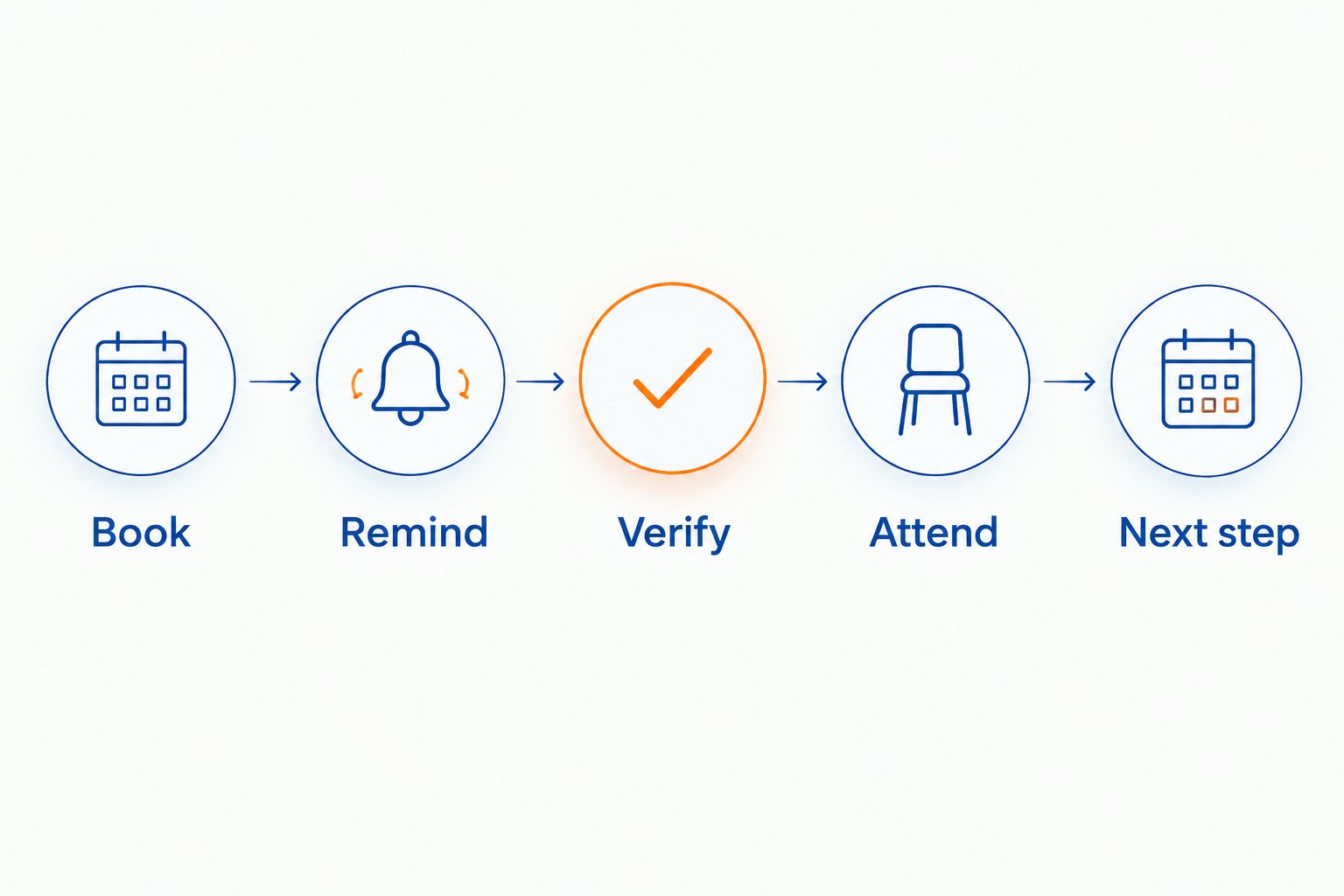
This sequence keeps the administrative workflow separate from clinical timing: book, remind, verify, attend, then arrange the next step.
Update the workflow whenever an appointment changes
Rescheduling needs its own workflow because changing your calendar does not change the office's appointment book. Use this variant whenever a visit moves, whether you requested the change or the office contacted you.
- Confirm the replacement booking. Contact the office and settle the new date and time. Ask what happens to the original booking rather than assuming it has been removed.
- Edit the existing event. In Google Calendar, open the original appointment and select Edit event. Update its date, time, location, and instructions, then select Save.
- Recheck the alerts. Review every notification against the new appointment time. Remove duplicate events created from a second message or a family member's separate entry.
- Tell affected people. Update anyone arranging transportation, childcare, or work coverage. If you share a calendar, confirm that everyone is looking at the revised event.
Expected result: the office booking, your calendar, and household arrangements all refer to the same appointment. For a changed 2026 visit, there should be one active personal event, not competing old and new entries.
If you cancel without choosing another date, replace the appointment with a task to arrange care. A deleted event alone leaves no next action.
Troubleshooting your appointment reminders
The calendar alert never appeared
Open the event and check that it contains a notification. Then check the calendar app's notification permissions and your device's focus or notification-suppression settings. Test with a separate event; an alert setting alone does not prove delivery works.
You receive reminders for the old appointment
Compare the sender and event details before acting. Correct an outdated personal event yourself, but ask the office to resolve an outdated office message. Check for duplicates on shared calendars and calendars connected to another account.
You confirmed, but another message asks you to confirm
Do not treat the extra message as proof that the visit was canceled. Contact the office if the confirmation status is unclear. Dismissing an alert or replying through an unsupported channel does not establish that the office received your response.
A family member's appointment is mixed up with yours
Check each person's booking separately with the office. Maintain separate calendar events with enough information for your household to distinguish them, while keeping sensitive details off shared calendars. Update only the appointment that changed.
The reminder arrives after your situation has changed
If you develop new symptoms or receive different preparation instructions, contact the dental team rather than following an old calendar note. A routine cleaning reminder does not determine the right care for a new dental problem. Keep clinical questions out of an unattended reminder reply channel.
Customize your workflow
Build your 2026 schedule around the dental team's recommendation and the practical demands of your household. The guide to how often adults should get a dental checkup and cleaning explains why appointment timing needs a clinical decision before it becomes a calendar setting.
For shift work, choose an early planning alert that arrives during your waking hours. For children, add a separate household task for school arrangements or transportation. Neither adjustment changes the booked appointment or the clinician's instructions.
Keep the setup small enough to maintain. One accurate event with useful alerts is better than several overlapping reminders that nobody checks. If a caregiver helps you attend visits, decide together what information belongs on a shared calendar and what should stay private.
FAQ
What’s a dental appointment reminder system for patients?
A patient-side dental appointment reminder system combines a confirmed office booking, personal calendar alerts, and a process for confirming or rescheduling. It supports attendance but does not replace the dental office’s appointment book.
Can Google Calendar confirm my dental appointment?
Google Calendar does not confirm a dental appointment with your office merely because you create or accept an event. Follow the office’s stated confirmation instructions or contact the office directly.
How many reminders should I set for a cleaning?
Set reminders for actions you need to take, rather than targeting a fixed number. An early conflict check, a preparation alert, and a departure cue are a practical starting structure; remove alerts that serve no purpose.
Should I automatically repeat my cleaning appointment?
Do not treat an automatically repeating calendar event as a booked dental appointment. Ask your dental team about the next interval, then enter the date after the office confirms the booking.
What should I do when I reschedule a dental cleaning?
Confirm the replacement date with the office, then update your personal calendar and review its alerts. Remove duplicate entries and tell anyone helping with transportation or household arrangements.
Does Dental Arts of Atlantis use the reminder software in this guide?
This guide describes a personal Google Calendar workflow, not the reminder software used by Dental Arts of Atlantis. Ask the practice directly how to receive and respond to its appointment communications.
Is it safe to put dental details on a shared calendar?
Keep sensitive dental information off calendars shared with people who do not need it. Use a neutral event title and store only the practical details needed to attend the appointment.
One last thing
The most useful reminder can be a reminder to book. If you leave a cleaning without arranging the next visit, create a clear follow-up task rather than a repeating event that only looks like an appointment. That small distinction prevents your calendar from giving you false reassurance.
Related guides
- Dental care for shift workers with irregular schedules
- How to prepare for your first visit as a new patient
- Family dentistry for busy Palm Beach County households